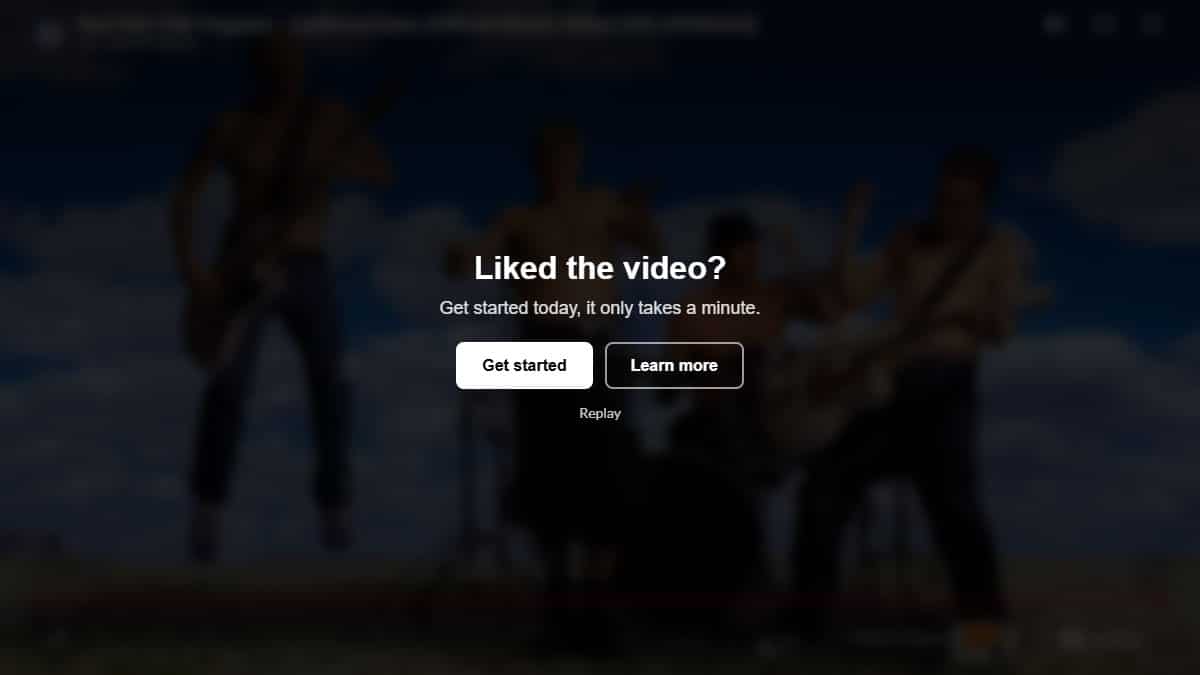
Most visitors who finish your video are ready for the next step, but by default the video just stops, and YouTube even fills the screen with suggestions for other videos. With WP Video Popup PRO you can show an end screen instead: a headline, a short text and up to two buttons, laid over the video the moment it ends.
End screens are a PRO feature, added in version 3.0. See WP Video Popup PRO.
Add an end screen to the shortcode
Add a headline, a button text and a button link to your shortcode:
[wp-video-popup video="https://www.youtube.com/watch?v=YlUKcNNmywk" cta-title="Liked the video?" cta-text="Get started today, it only takes a minute." cta-button="Get started" cta-url="https://yourwebsite.com/signup/"]When the video ends, the end screen fades in on top of it. Visitors can click your button or watch the video again with the Replay button, which is always included.
Live demo: the video starts shortly before its end, so you see the end screen after about 3 seconds.
Paste the shortcode wherever you’d normally add it: a Shortcode block, an Elementor Shortcode widget, a Divi Code module or a Bricks Shortcode element.
Add a second button
Need a second option, like “Learn more” next to “Buy now”? Add cta-button-2 and cta-url-2. The second button is shown in a lighter style, so the first one stays the main call to action:
[wp-video-popup video="https://www.youtube.com/watch?v=YlUKcNNmywk" cta-title="Ready to try it?" cta-button="Buy now" cta-url="https://yourwebsite.com/pricing/" cta-button-2="Learn more" cta-url-2="https://yourwebsite.com/features/"]Open the links in a new tab
By default the buttons open their link in the same tab. Add cta-new-tab="1" to open them in a new tab instead.
Use the shortcode builder
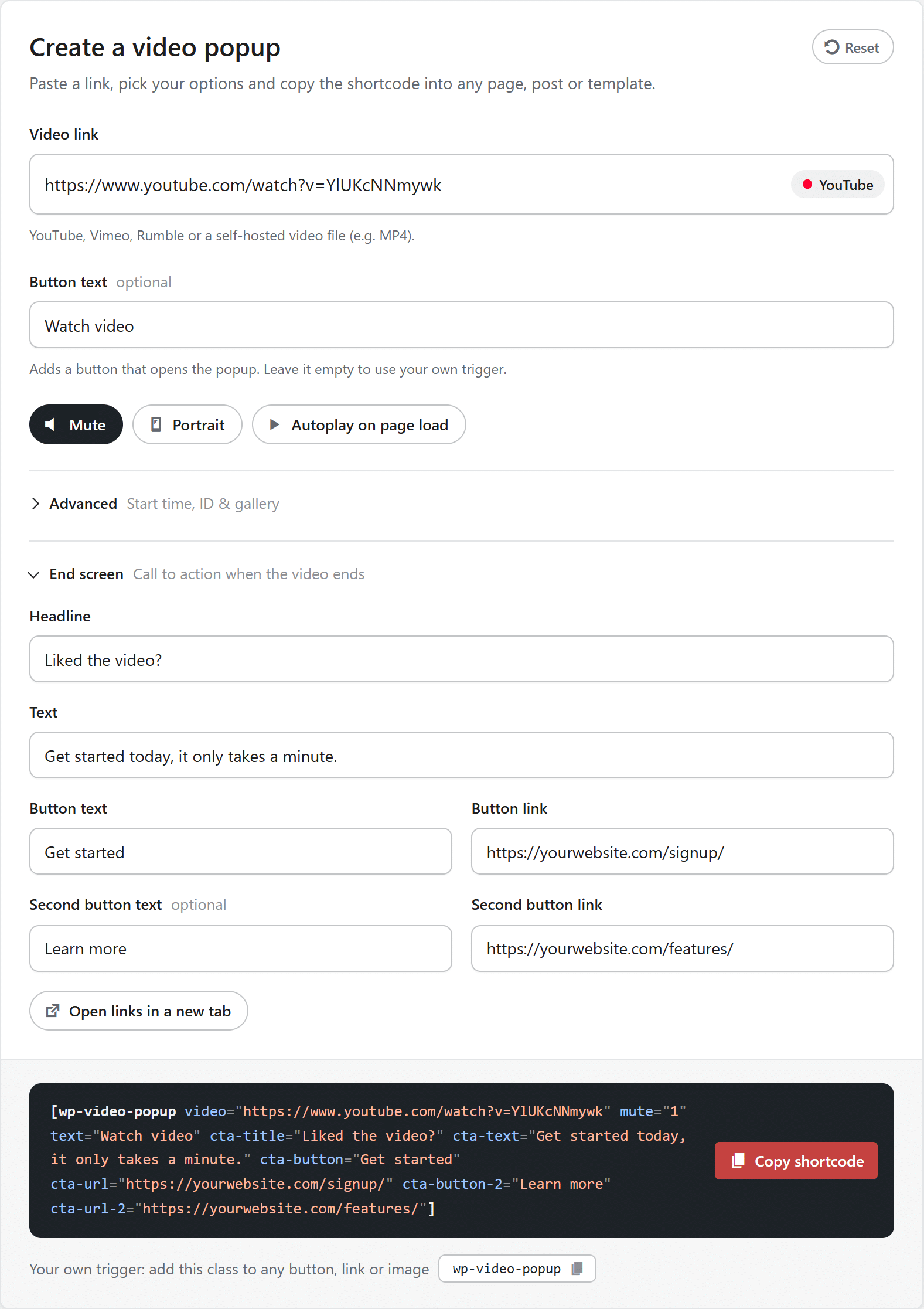
Don’t want to type the attributes? Go to Settings → WP Video Popup, open the End screen section of the shortcode builder and fill in the fields. The builder adds the attributes to the shortcode for you and reminds you if a button is missing its link.
All end screen options
All options are optional, but the end screen needs at least a headline, a text or a button to show up.
| Attribute | What it does |
|---|---|
cta-title | The headline, e.g. “Liked the video?” |
cta-text | A short text below the headline. |
cta-button | The text of the main button. |
cta-url | The link of the main button. |
cta-button-2 | The text of the second button. |
cta-url-2 | The link of the second button. |
cta-new-tab | Set to 1 to open the button links in a new tab. |
A button only shows up if it has both a text and a link.
Which videos are supported?
End screens work with YouTube, Vimeo and self-hosted videos. Rumble doesn’t tell the page when a video has ended, so Rumble videos play as usual, without an end screen.
Things to keep in mind
- Privacy: the end screen doesn’t load any extra scripts from YouTube or Vimeo. It listens to the player that’s already in the popup.
- Accessibility: when the end screen shows up, keyboard focus moves to its first button, so keyboard and screen reader users don’t get stuck on the finished video.
- Caching: clear your cache after adding or changing the shortcode.
For developers: the wpvp:ended event
Every popup with an end screen fires a wpvp:ended event when its video ends. Use it to track video completions in your analytics, for example:
document.addEventListener( 'wpvp:ended', function ( e ) {
	// e.detail.video is the video that just ended, e.detail.provider is youtube, vimeo or self-hosted.
	console.log( 'Video ended', e.detail.provider, e.detail.video );
} );
Related guides
- Multiple video popups, galleries, autoplay & end screens (PRO)
- Autoplay a video popup on page load (PRO)
- How to add a video popup in WordPress
- How to add a video popup in Elementor
- How to add a video popup in the block editor (Gutenberg)
- How to add a video popup in Divi
- How to add a video popup in Bricks